Home › Remote control › Guide
Pair afu-remote with afu.tools
From your account to a station that shows as “online” on the control page. Every step has a picture, about ten minutes in all. Click a picture to see it full size.
Prepare
What you need, and creating the station on afu.tools.
What you need
- An account on afu.tools with your callsign. Transmitting remotely only works with a verified callsign.
- A radio connected to the computer by USB (CAT and audio over one cable, like most newer rigs). Which rigs work is listed under Rigs.
- A computer next to the radio: Windows 10 or 11, Linux on a PC, or a Raspberry Pi with a 64-bit system.
- Internet on that computer. You don't need port forwarding on the router, the program dials in to afu.tools by itself. Only HAMNET, no internet? Then read HAMNET and LAN first.
1. Create the station
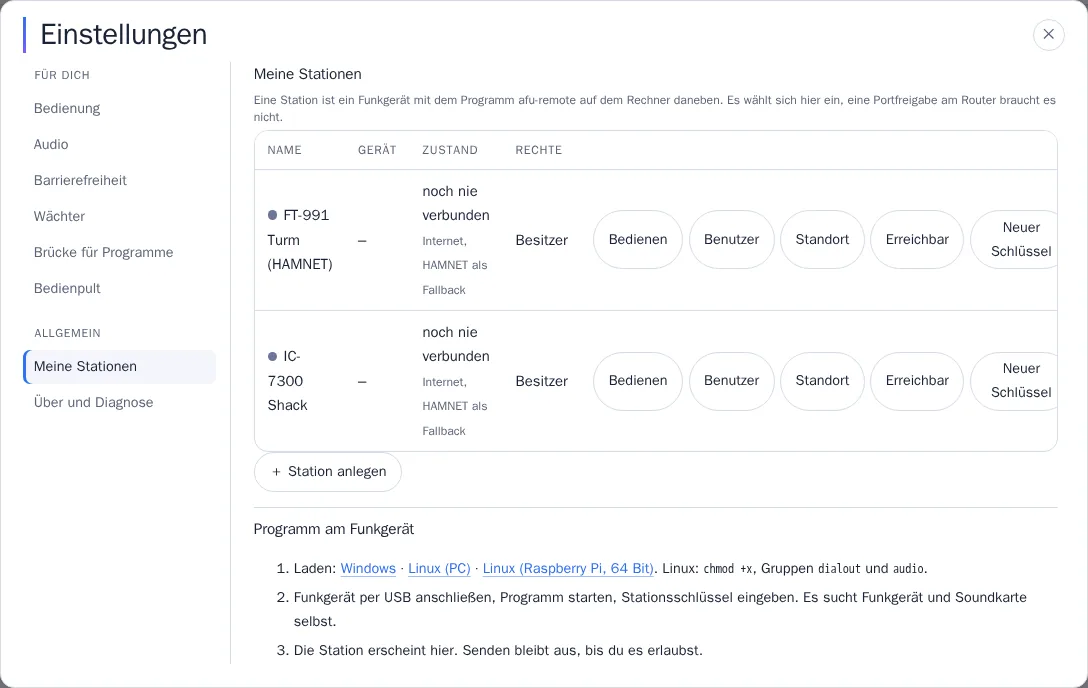
Sign in and open My stations. On your first visit the page opens there by itself. Click + Create station and give it a name you'll recognise, such as the rig and the place.
A station is always one radio with its computer. Two radios are two stations.
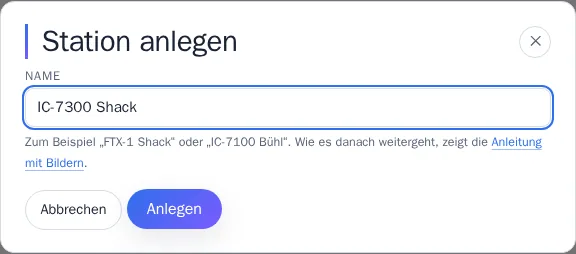
2. Copy the station key
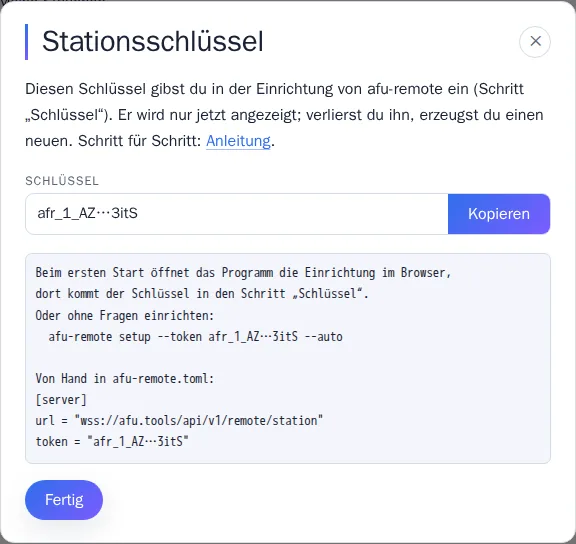
Right after that, afu.tools shows you the station key. It starts with afr_ and links the program at the radio to exactly this station. Click Copy and keep it handy, you'll need it in the setup in a moment.
The key is only shown this once. Don't pass it on: anyone who has it can pretend to be your station. Lost it? No problem, just create a new one (Renew the key).
When you close the dialogue with Done, the station appears in the list as “never connected”. That changes as soon as the program is running.
Set up the program
Download afu-remote, start it and set it up in the browser. You don't have to type anything in the console window.
3. Download and start the program
Download the program for your computer under Remote control › Download. Connect the radio by USB and switch it on, then start the program.
Windows
- Put
afu-remote.exein a folder of its own, for exampleC:\afu-remote. That's where the program will keep its settings later. - Double-click it. If Windows warns about an unknown publisher: “More info”, then “Run anyway”.
Linux and Raspberry Pi
- Make it executable once and give yourself access to the rig and audio (then sign out and back in):
chmod +x afu-remote-linux-*
sudo usermod -aG dialout,audio $USER
- Start it, on the Raspberry Pi for example with
./afu-remote-linux-aarch64.
A console window opens, followed right away by the browser with the setup. The window stays open until the setup is finished. This is what it looks like:
afu-remote 0.2.133
Noch nichts eingerichtet. Einrichtung im Browser:

    http://127.0.0.1:8073/einrichtung        (öffnet sich gleich von selbst)

Fenster offen lassen, bis die Einrichtung fertig ist. Beenden mit Strg+C.
Without a screen (Raspberry Pi over SSH, server) nothing opens by itself. The console then shows an address on the LAN and a code. Open the address in the browser on another computer and enter the code there:
Kein Bildschirm erkannt (DISPLAY fehlt, Start über SSH?): der Browser öffnet sich nicht von selbst.
Am Rechner selbst die Adresse oben öffnen, oder von einem anderen Rechner wie unten.

Aus dem Netz (anderer Rechner im LAN):
    http://192.168.1.20:8073/einrichtung     Code: 7KQ4-M2XD
The address and code here are examples, yours are shown in your console.
4. What will this PC be?
The setup takes you through eight steps, and the left side shows where you are. With “Back” or a click on the left you can go back at any time; nothing is saved until the end.
Choose Station: the radio is connected to this computer. “Operator PC” is for the computer you sit at when you want to connect other programs to the station, you don't need that here.
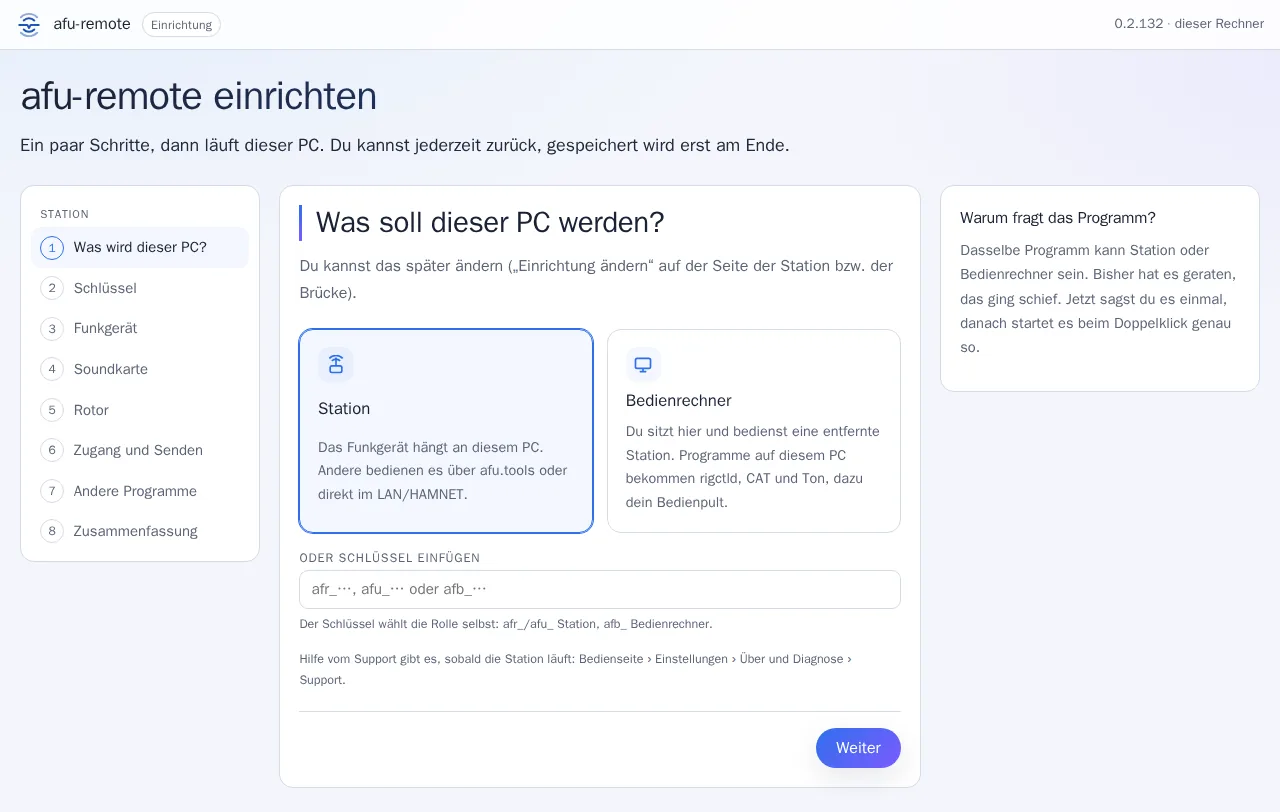
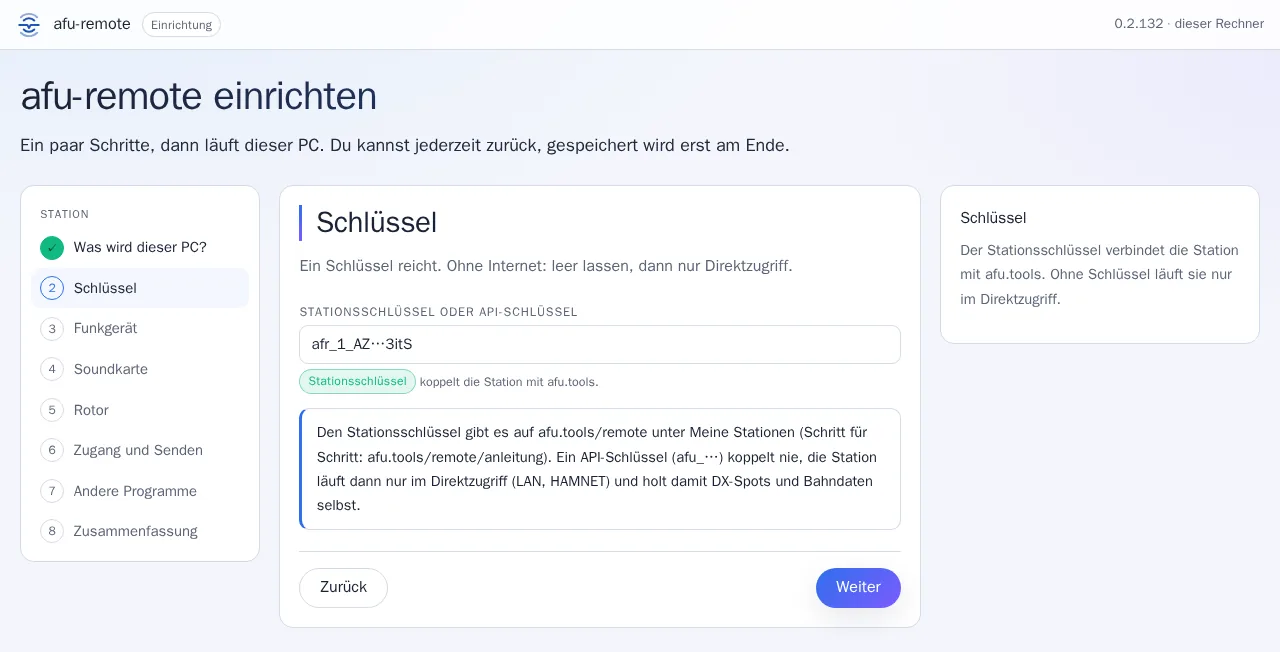
5. Paste the key
Paste the station key from step 2. Once the setup recognises it, you'll see Station key in green below it and “pairs the station with afu.tools”.
If it says “API key”, you've grabbed a key from afu.tools/api (afu_…). That one doesn't pair, use the one from My stations.
6. Find and test the radio
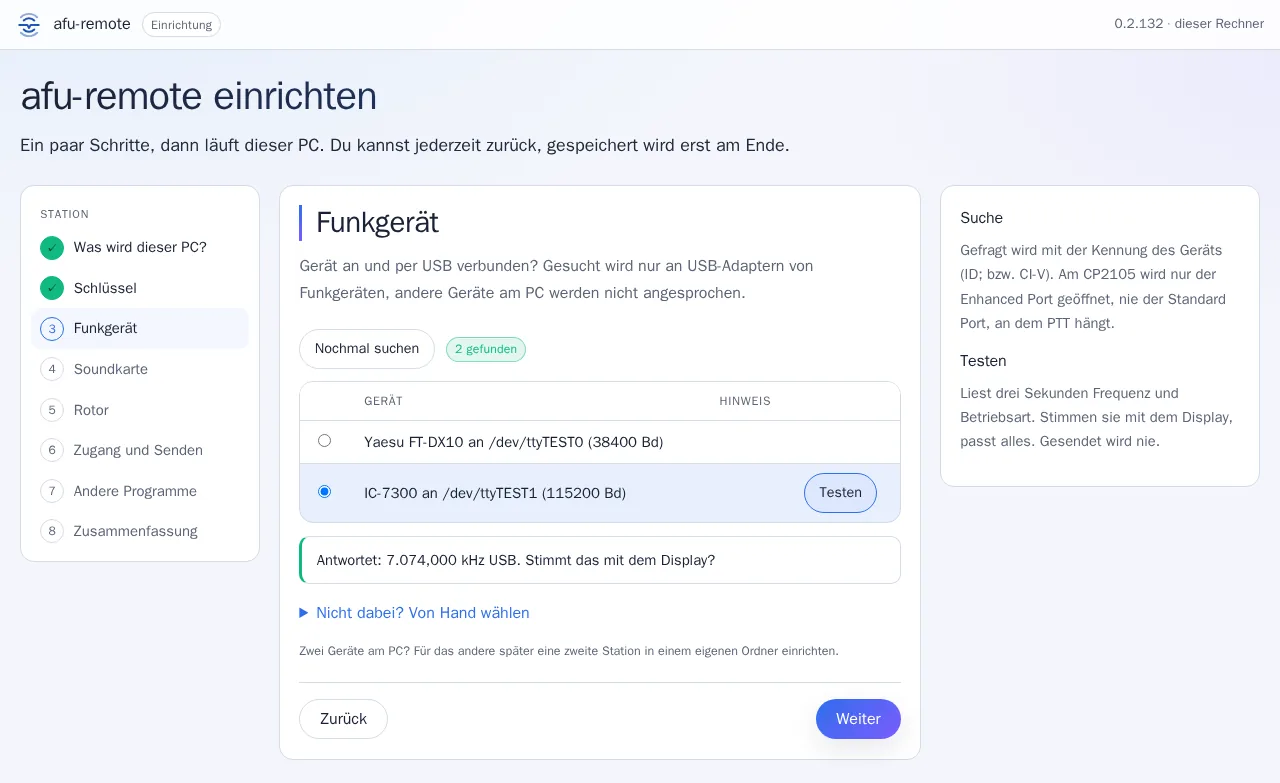
The search runs by itself. It only queries USB adapters of radios and never transmits. Pick your rig and click Test: frequency and mode are read for three seconds. If they match the display, you're all set.
Nothing found? Rig switched on, cable plugged in? Then “Search again”, or enter the rig and port yourself under “Not listed? Choose manually”. More on this in Questions and fixes.
7. Sound card
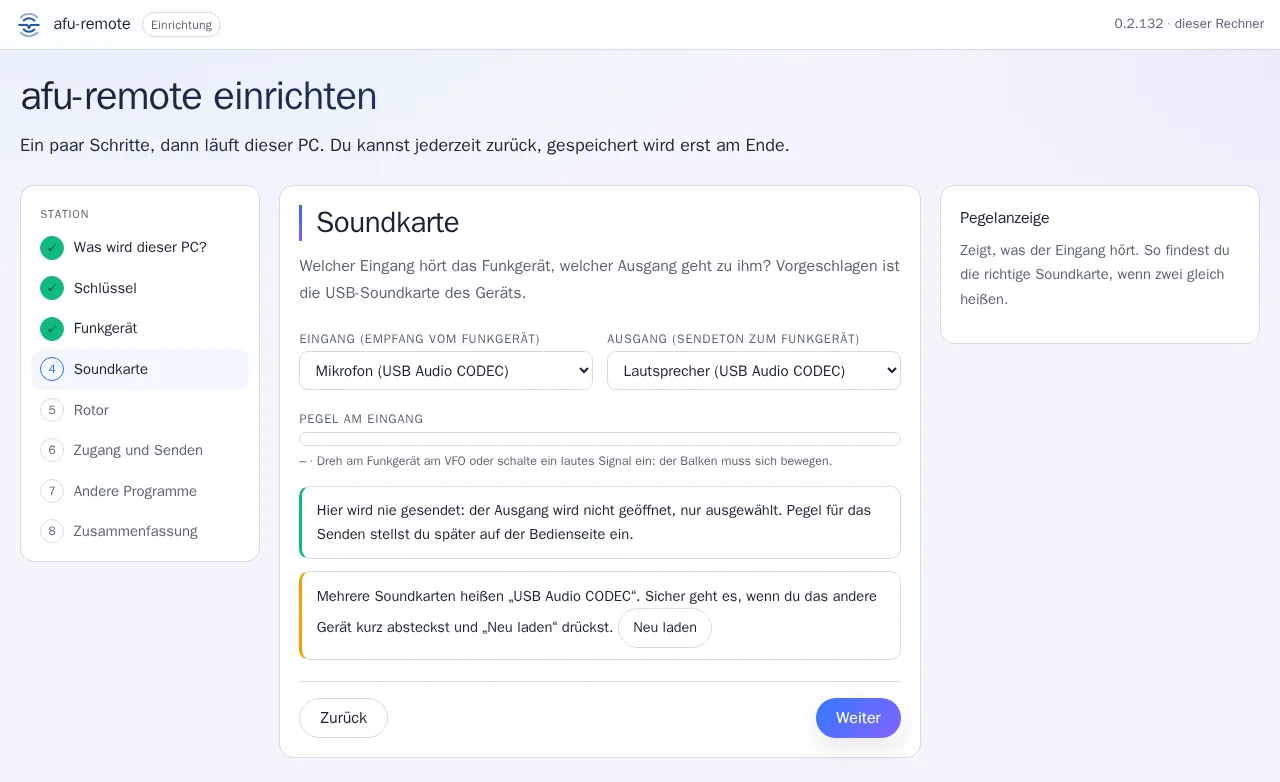
The sound card in the radio is usually called “USB Audio CODEC” or carries the rig's name. Choose it for Audio from rig and Audio to rig. The level meter next to it shows whether anything is coming from the rig: turn the volume up a bit on the rig and it moves.
Next comes Rotator: if you don't have one, just carry on.
8. Access and transmitting
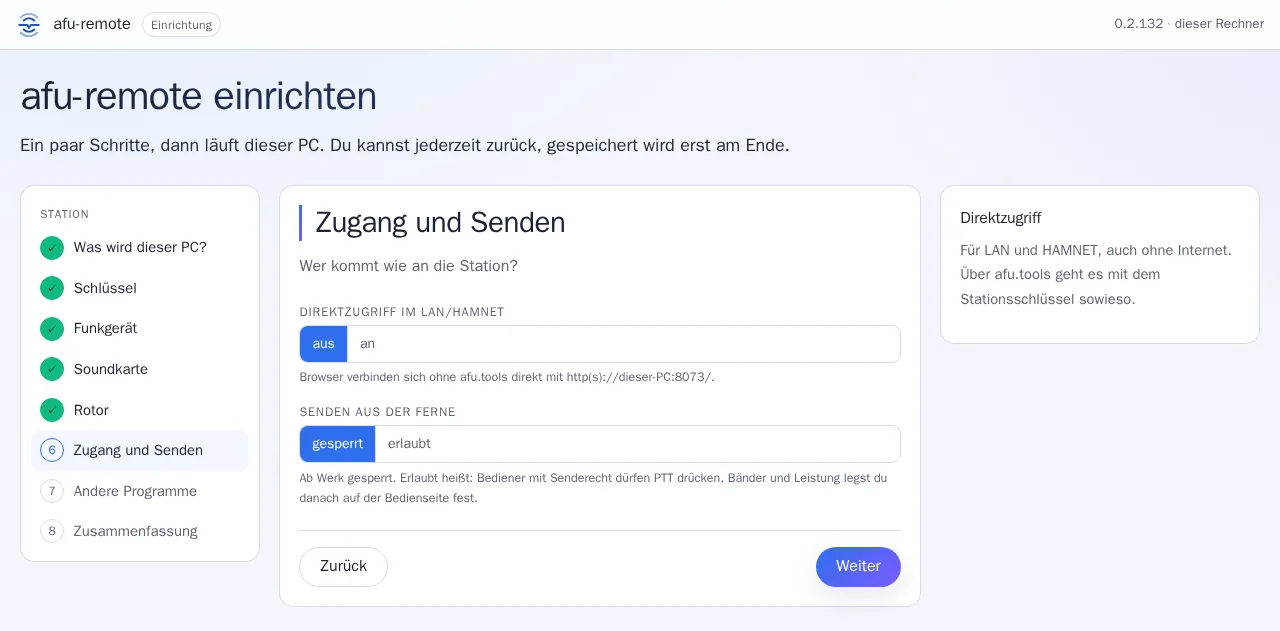
Leave Direct access on LAN/HAMNET off to begin with. Via afu.tools it works with the station key anyway, even when you're away. You only need direct access for HAMNET or your own network without internet.
Remote transmitting is locked out of the box. Leave it that way for now: then you can check in peace that everything works. You can allow it later on the control page under Settings › Station › Rig, which is also where you set bands and maximum power.
Under Other programs you'll find the interfaces for programs on this computer (such as rigctld). The defaults are fine, carry on.
9. Summary and save
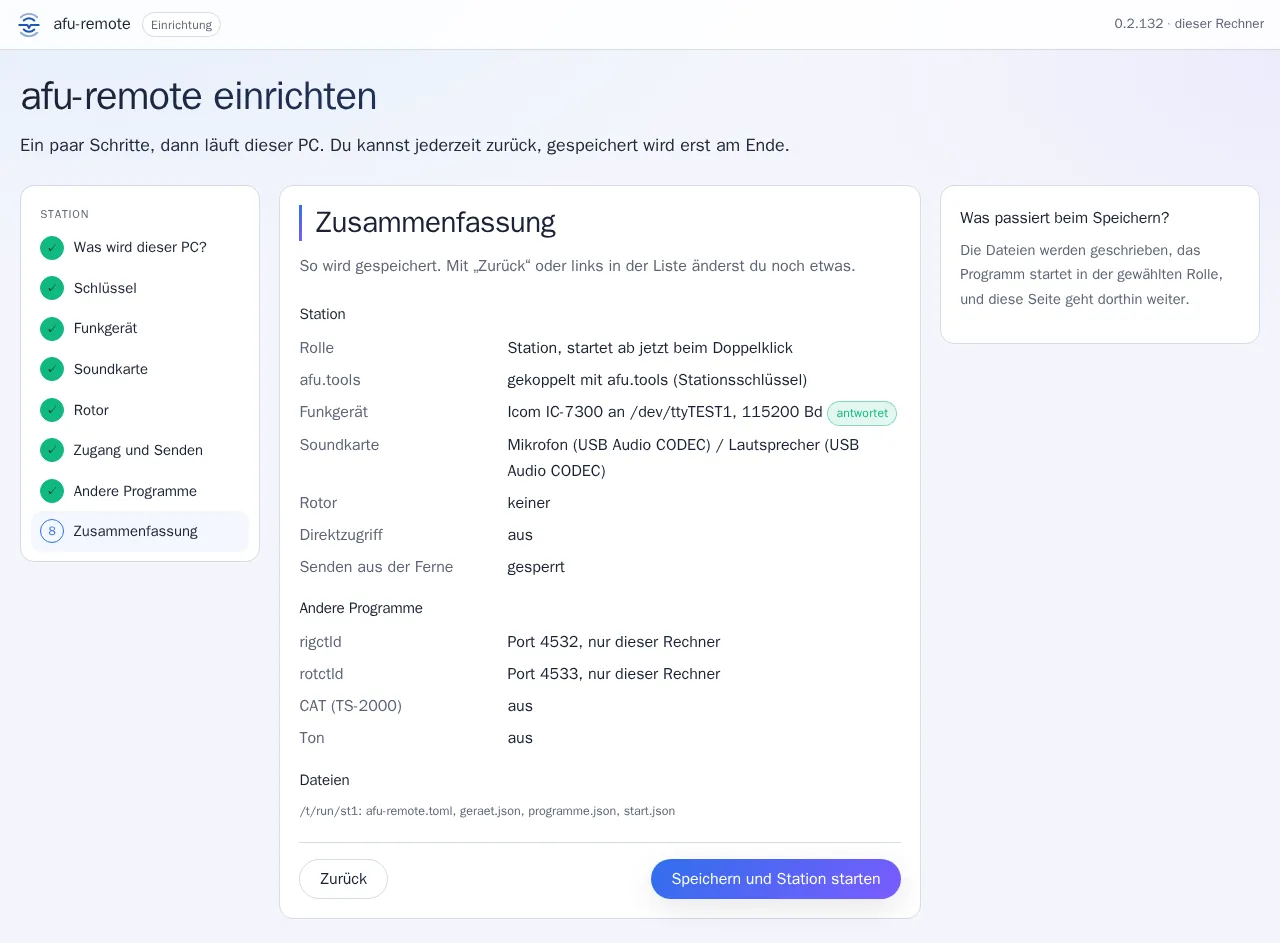
At the end everything is listed once more. What matters is the line afu.tools: paired with afu.tools (station key) and the green “responds” next to the radio.
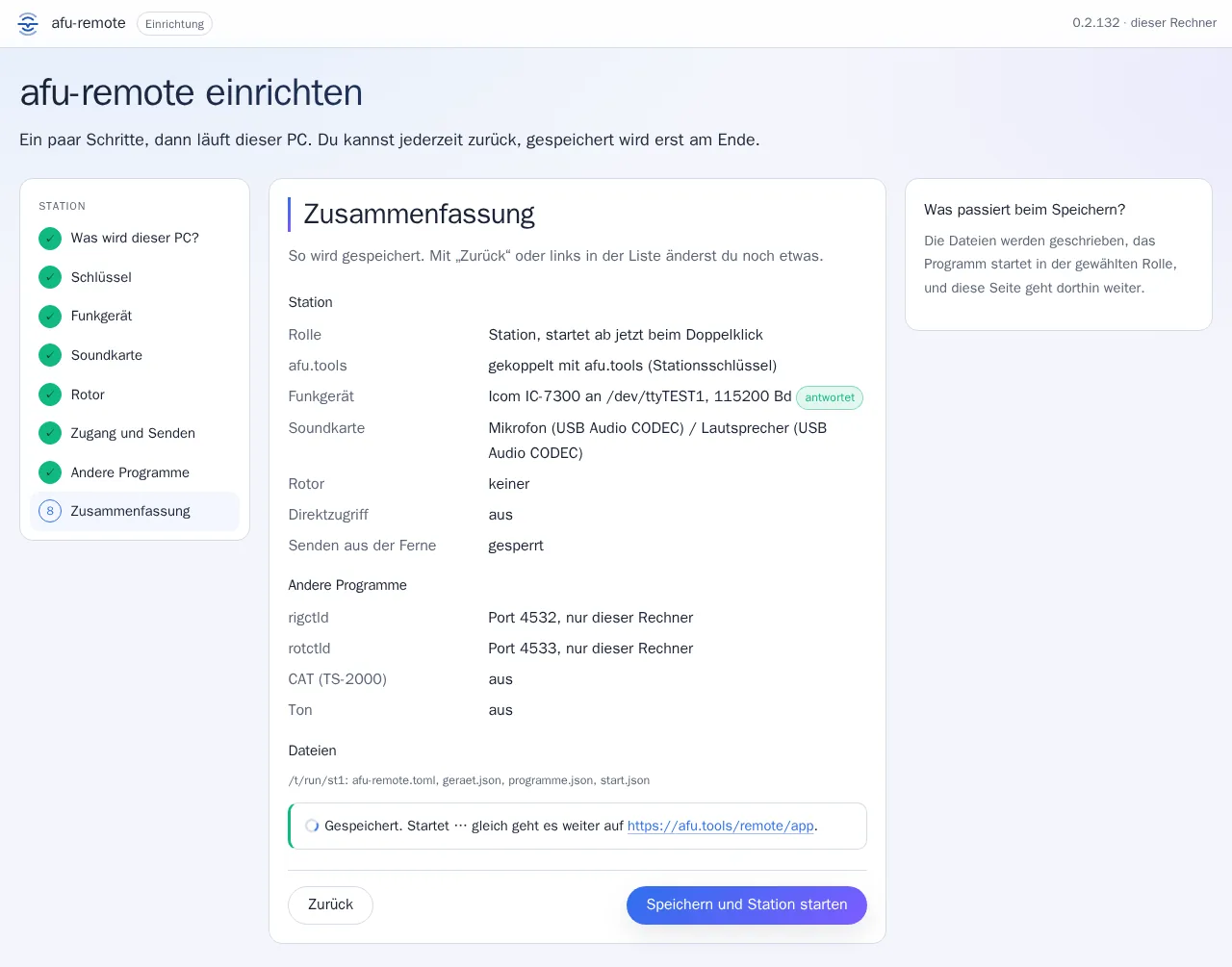
Click Save and start station. The program writes its settings to the folder it's in, starts as a station, and the browser moves on to the afu.tools control page. From now on, a double-click starts the station straight away.
Rather do it without a browser?
For scripts and services, one command sets up the station without any questions: first rig found, transmitting off.
afu-remote setup --token afr_DEIN_SCHLUESSEL --auto
Check and run permanently
Is the station there, and will it still be running after the next reboot?
10. The station is online
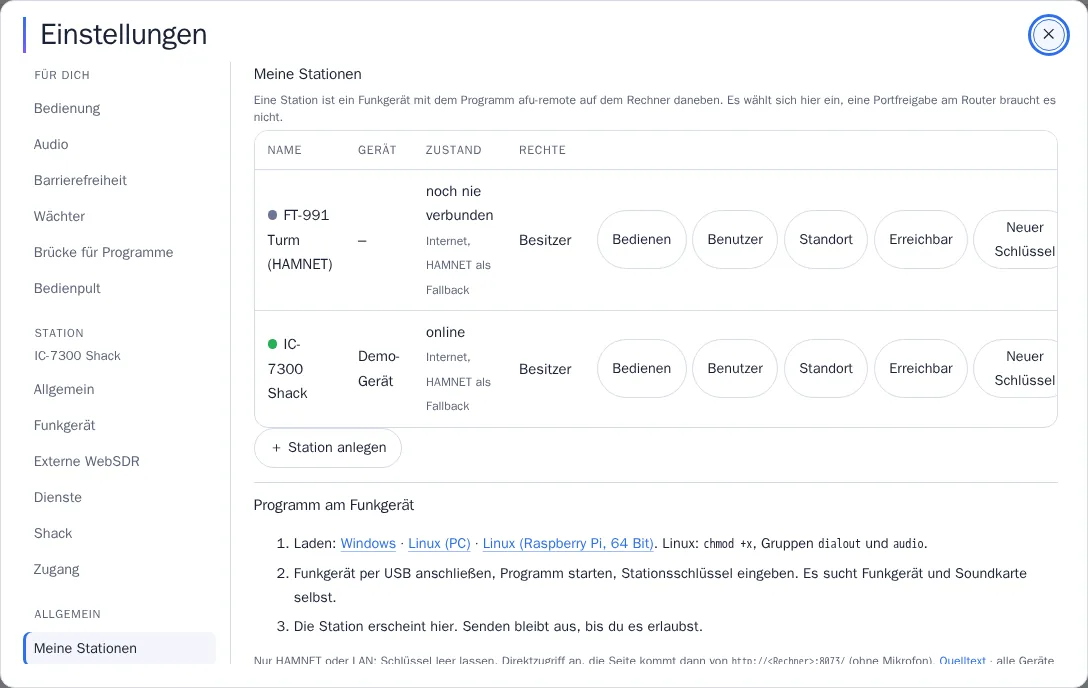
Under My stations your station now shows a green dot and online, and the Rig column shows your radio.
It has worked if it says “online”. If it still says “never connected”, wait a few seconds and reload the page. If it stays that way, have a look at If something goes wrong.
11. Open the control page
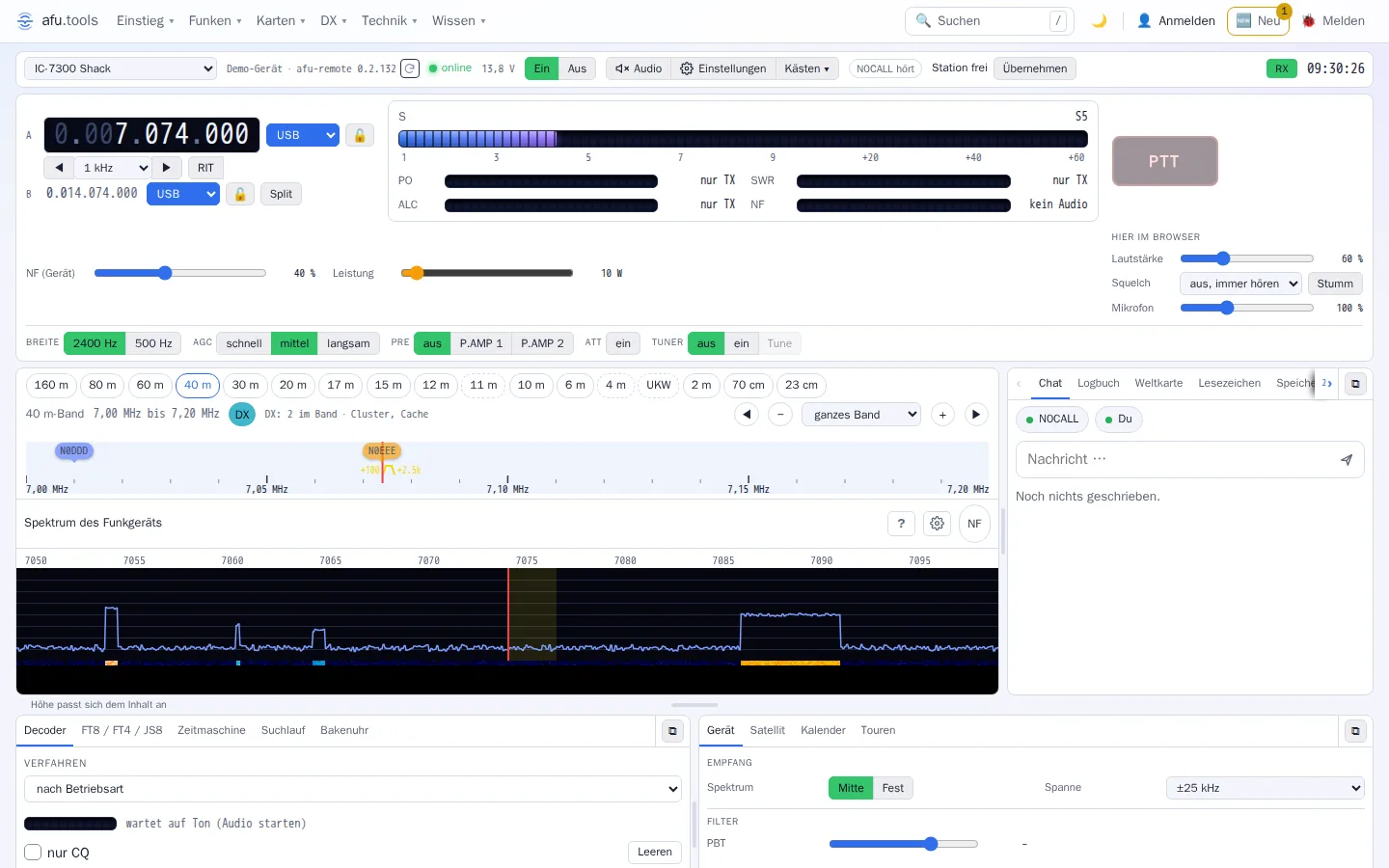
Click Operate next to the station. At the top you'll see your rig's frequency, mode and S-meter, with the spectrum below. Turn the dial on the rig: the frequency on the page follows.
You hear audio via Audio in the bar at the top. You can operate via “Take over”. Transmitting only works once you've allowed it (Settings › Station › Rig).
12. Running permanently
The station runs as long as the program runs. To have it come back by itself after the computer restarts:
Windows
Open shell:startup with Windows key + R and create a shortcut to afu-remote.exe there (right-click the file, “Create shortcut”, drag the shortcut into the folder). The station then starts every time you sign in.
Linux and Raspberry Pi
Set up the service once in the folder with the settings file. It starts at boot and restarts after a crash:
sudo ./afu-remote-linux-aarch64 dienst
journalctl -u afu-remote -f      # was die Station schreibt
You install updates later at the push of a button on the control page, never automatically.
Sharing and keys
Letting others use your station, and what to do if the key is gone.
Share with other callsigns
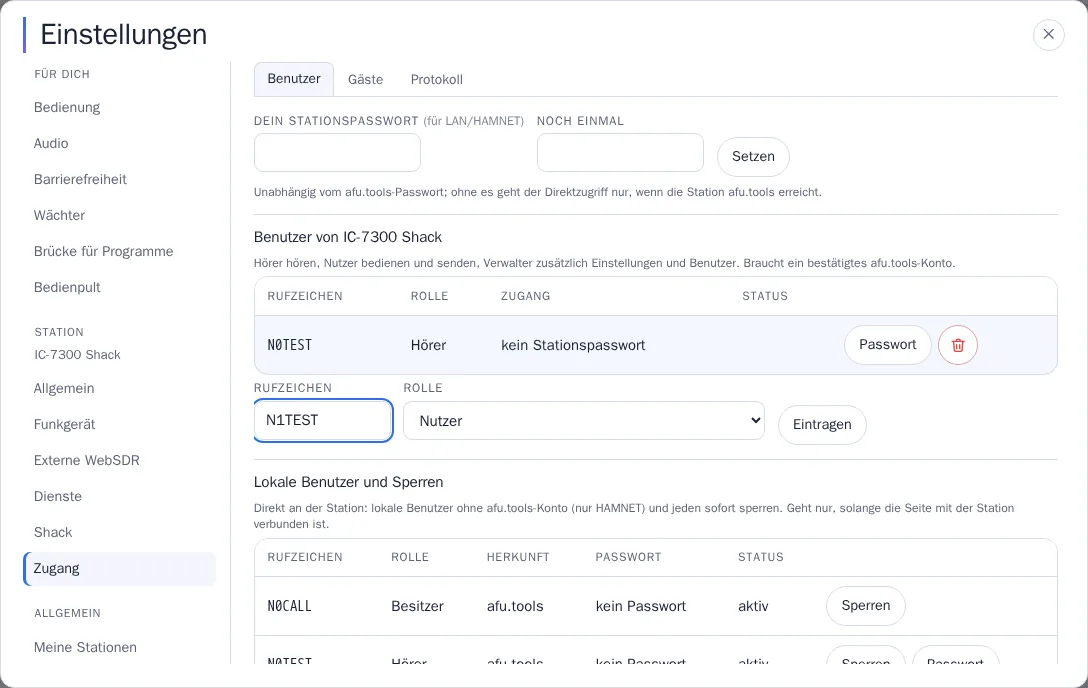
Under My stations, click Users next to the station. Enter a callsign, choose a role, “Add”. Anyone added sees the station in their list after signing in.
- Listener: listen only, can't change anything.
- User: operate and, if transmitting is allowed, transmit.
- Manager: also settings and users of the station.
The other person needs a verified account on afu.tools. Remove someone with the red bin icon in their row. A guest without an account can listen in via a link under Guests.
Renew the key
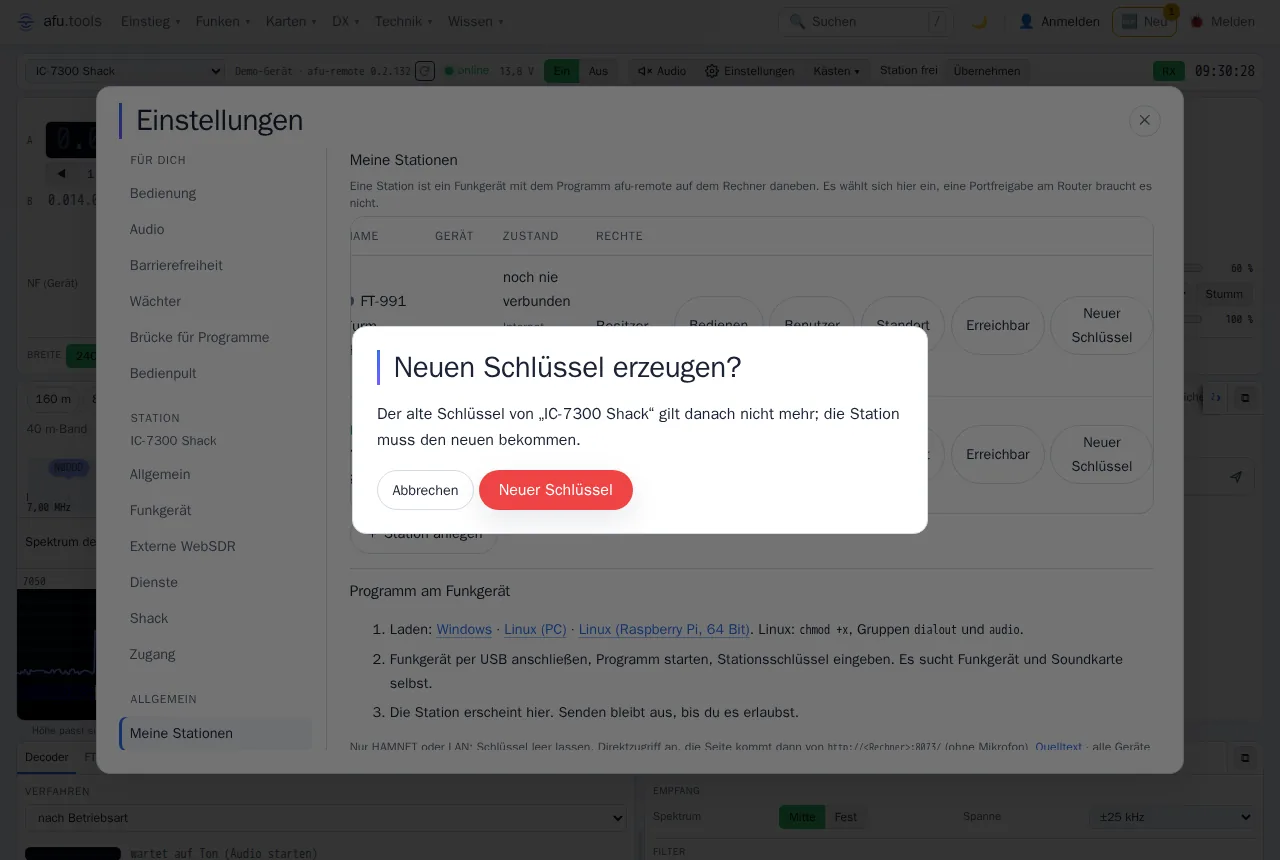
Lost the key or passed it on? Under My stations, click New key next to the station. After you confirm, afu.tools shows a new key; the old one stops working immediately and the station goes offline until it has the new one.
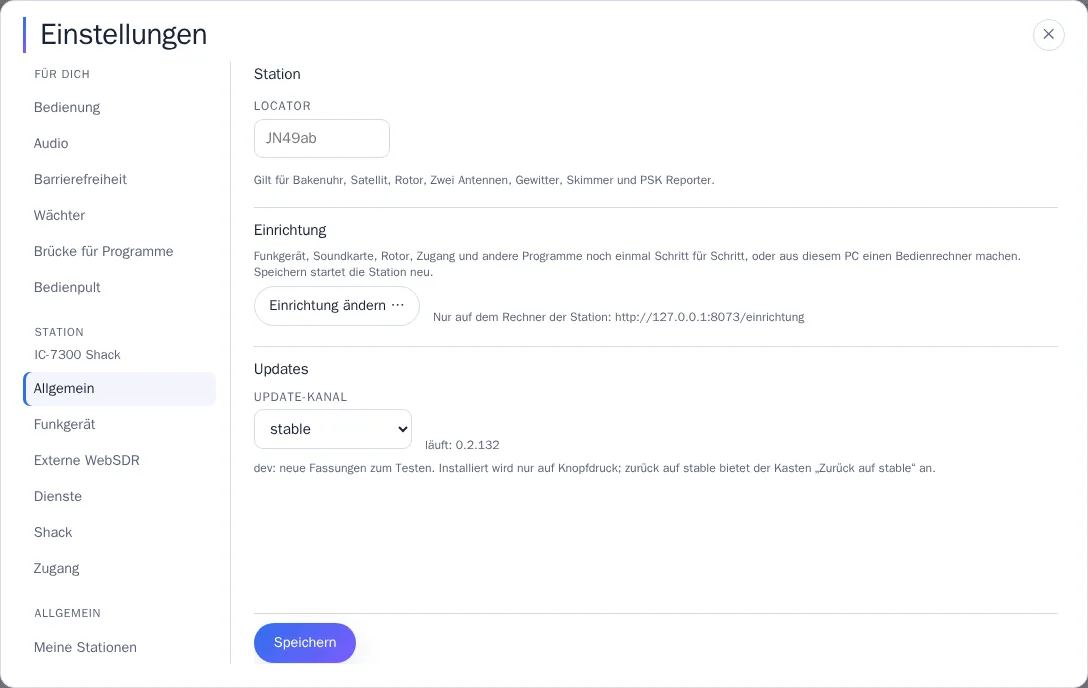
You enter the new key at the station: in the browser on the station computer open http://127.0.0.1:8073/einrichtung (or on the control page under Settings › Station › General “Change setup”), go to the “Key” step, paste the new one, save. Alternatively start afu-remote setup.
Create the station again
If you deleted the station and created it again, that's like a new key: the new station has its own, and the program needs it via “Change setup”. Sharing and settings of the old station don't carry over, so a new key for the existing station is usually the better way.
HAMNET and LAN
The station is on HAMNET or your own network, without internet or with internet only as a second route.
Switch on direct access
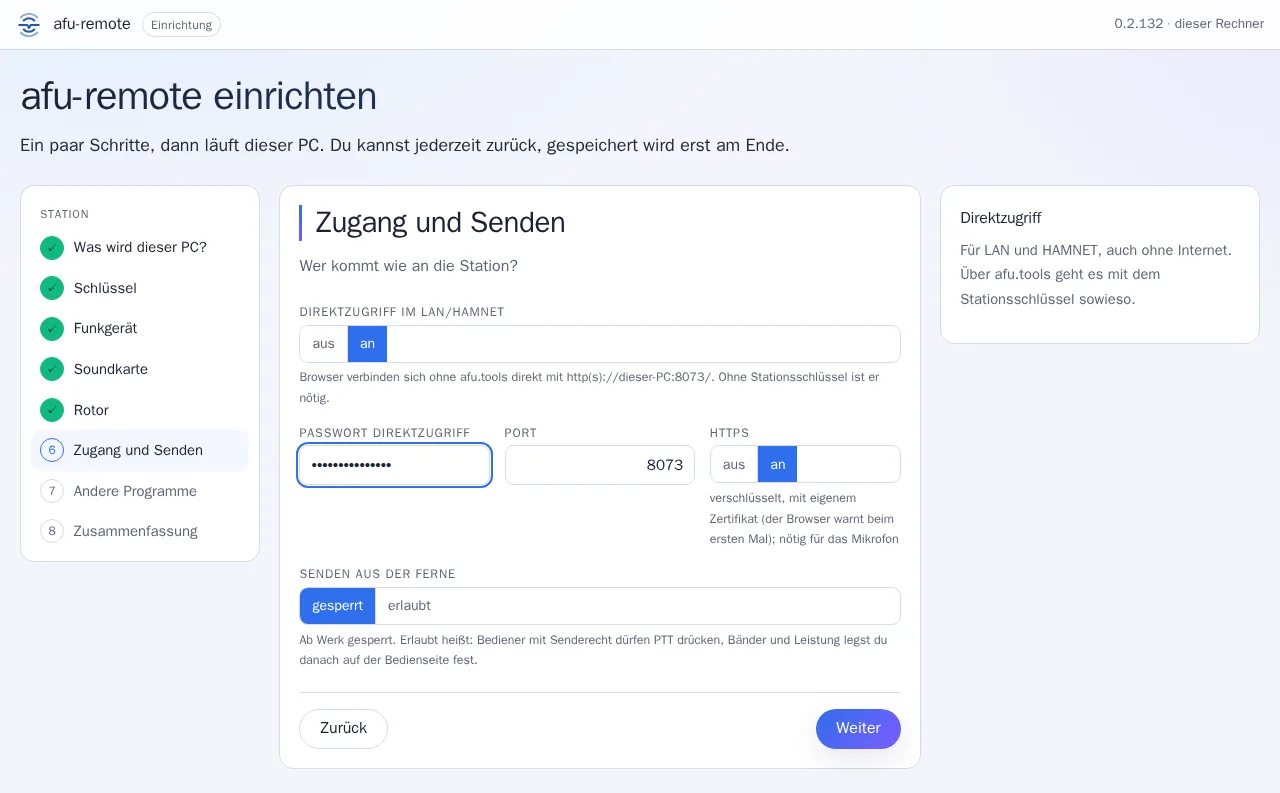
In the setup (step 8), set Direct access on LAN/HAMNET to “on” and choose a password. You'll use it later to sign in directly at the station. Leave port 8073 and https on as they are: without https the browser won't release the microphone.
Without internet, leave the key field empty. The station then runs in direct access only, at https://<Adresse der Station>:8073/.
Pair with afu.tools via HAMNET
You still want the station in My stations and to operate it from afu.tools, but the station can't get onto the internet, or not always? Then pair it directly via the browser:
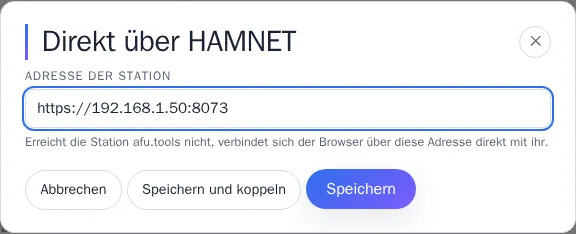
- Under My stations, click HAMNET next to the station and enter the address your browser reaches the station at, for example
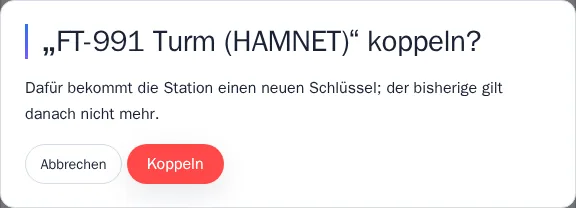
https://<Adresse der Station>:8073, on HAMNET or your own network. - Save and pair, then confirm with “Pair”. The station gets a new key for this.
- A new tab opens the station's page. The first time, the browser warns about the certificate: the station has its own, which no browser knows. Click “Advanced” and “Proceed to …” (named similarly depending on the browser).
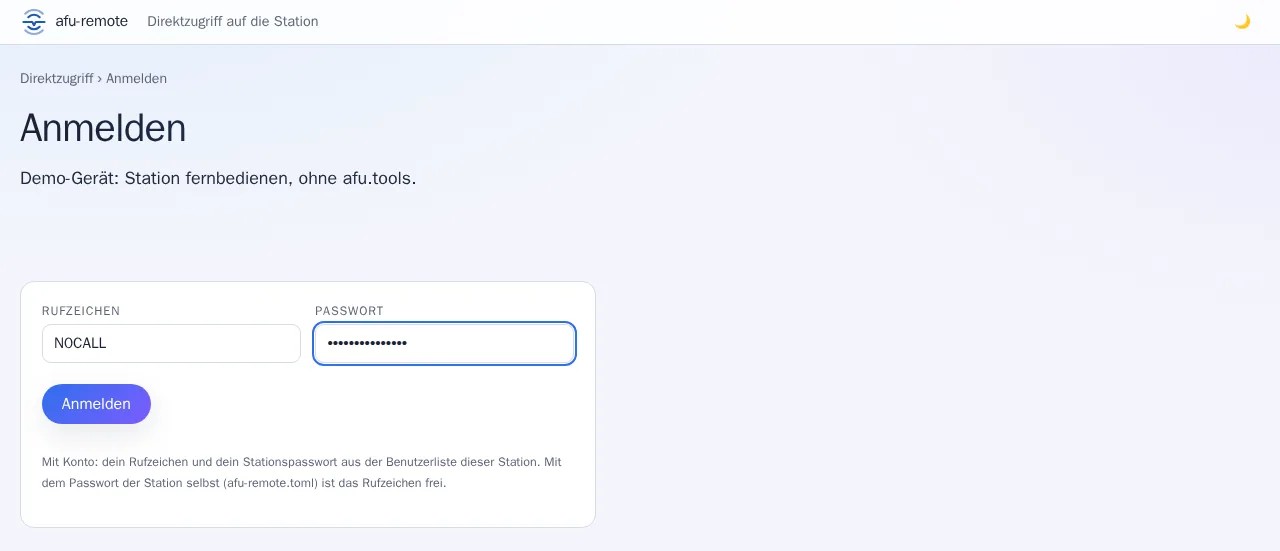
- Sign in at the station with your callsign and the password from the setup.
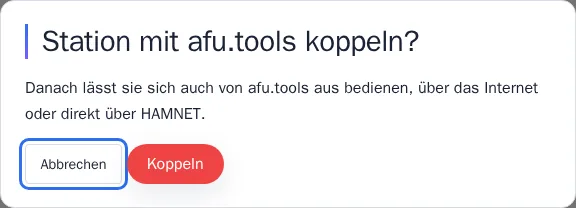
- Confirm the question Pair station with afu.tools? with “Pair”. The station saves the key and reports “Key saved, the station is connecting to afu.tools”.
Afterwards, under Reachability you choose which route is tried first: internet with HAMNET as fallback (default), HAMNET first, internet only or HAMNET only.
If something goes wrong
The most common stumbling blocks when pairing. There's more in Questions and fixes.
The station stays “never connected” or “last …”
- Is the program still running? Without a service or autostart it ends when its window closes.
- Did the summary say “paired with afu.tools (station key)”? If not, run the setup again and paste the key.
- If you've created a new key or created the station again since then, the old key no longer works: enter the new one.
- Can the computer reach the internet? Without internet only direct access works.
In detail: The station shows as offline.
The browser doesn't open
The address is in the console: open http://127.0.0.1:8073/einrichtung in the browser yourself. If 8073 is taken, the program uses 8077, and the console says so too. Over SSH or without a screen, you can do it from another computer with the address and code from the console, as long as nothing has been set up yet.
The radio isn't found
Rig on and connected by USB? On Windows some rigs first need the manufacturer's USB driver, on Linux the group dialout (then sign in again). In detail: Radio or sound card not found.
The setup says “API key” instead of “station key”
You've pasted a key from afu.tools/api (afu_…). The station key starts with afr_ and comes from My stations. If it's gone: create a new one.
When pairing via HAMNET, the question “Pair station with afu.tools?” doesn't appear
The question only appears for the owner, that is with the password from the setup. If no page opens at all, use the “Open station” link in the HAMNET dialogue. If the page doesn't load, your browser can't reach the address: is it right, and is direct access on? Older versions of the program forgot the question if you had to sign in first: then use the “Open station” link again after signing in, or move to the new version.
Two radios on one computer
One station per rig, and one folder with the program per station. How that works: Two radios on one computer.
None of this fits? Tell us via Report, ideally with the output from the console window.